

Table of Contents
What is Justification Report?
A Justification Report in the TRACES Portal is a document that details defaults or errors identified by the Income Tax Department during the processing of a TDS (Tax Deducted at Source) / TCS (Tax Collected at Source) statement filed by a tax deductor/ tax collector for a specific quarter and financial year. It serves as an annexure to any demand notice or intimation sent to the deductor, outlining issues that require rectification through correction statements, interest payments, fees, or other dues.
The report includes specifics on errors like mismatched challans, incorrect PANs, or short deductions, along with required payments and spaces for deductor explanations or clarifications. Deductors use it to understand and address demands raised by the TDS wing, as notices alone do not specify error details.
Where to download the Justification Report Source File?
- Log in to the TRACES portal using your TAN-based user ID, password, and captcha.
- Navigate to Defaults > Request for Justification Report Download.
- Select the financial year, quarter, and form type, then click Go.
- Choose KYC validation method:
- Digital Signature (DSC) or
- Normal (enter unique PAN-amount combination from the latest TDS return).
- Enter details, proceed, paste the authentication code, and submit the request
- After about 4 hours, go to Downloads > Requested Downloads.
- Enter request number/date or view all
- Check the status of the request
- Submitted: Processing in progress.
- Available: Ready for download.
- Disabled: Duplicate request.
- Failed/Not Available: No defaults or contact CPC(TDS).
- If status is “Available,” click HTTP Download for the ZIP file.
Justification Report Utility – Where to Download?
Through TRACES Website
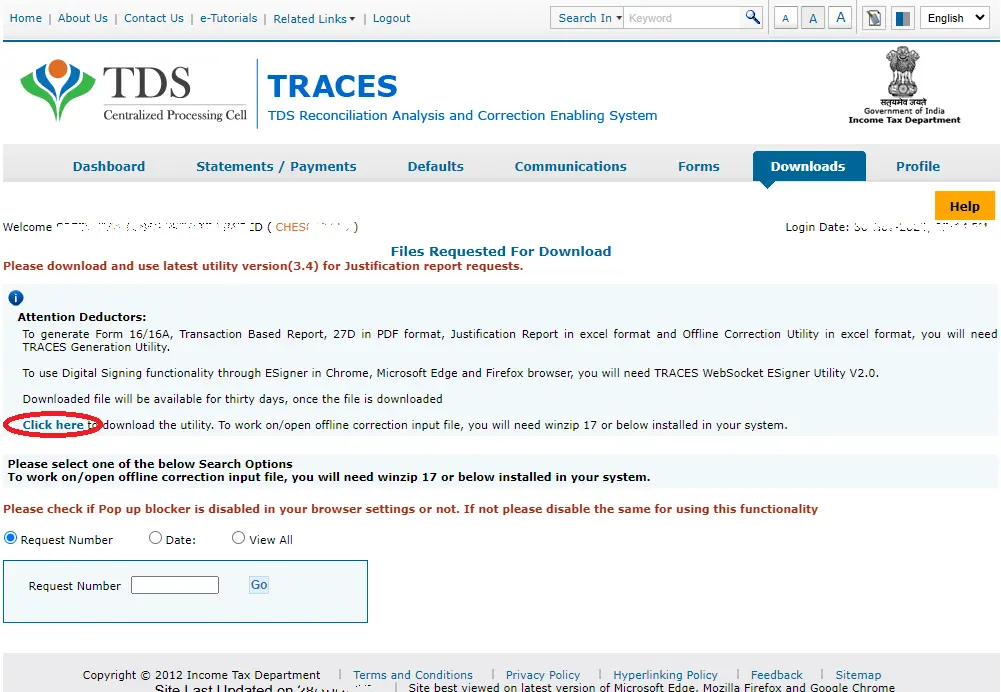
- Log in to the TRACES portal using your TAN-based user ID, password, and captcha.
- Navigate to Downloads > Requested Downloads.
- Click the link labeled Download Utility
- Enter the verification code displayed on screen.
- Select TRACES Justification Report Utility
- The utility requires MS Excel (preferable the latest version) with macros enabled.
Through TaxRoutine Website
Taxroutine.com offers a repository of various tax utilities from the Income Tax Department and GSTN.
You can simply click here to navigate to the TDS utilities section
- Go to www.taxroutine.com
- Click on Repository
- Scroll down to 🧰 Government-Issued Utilities
- Click on the Download Utilities Button in the TDS (TRACES) Utilities Section
[Disclaimer: TaxRoutine is not affiliated with, endorsed by, or connected to the TRACES (TDS Reconciliation Analysis and Correction Enabling System) website or any government authority. It is also not an alternative or replacement for the official TRACES website.]
How to generate the Justification Report Utility?
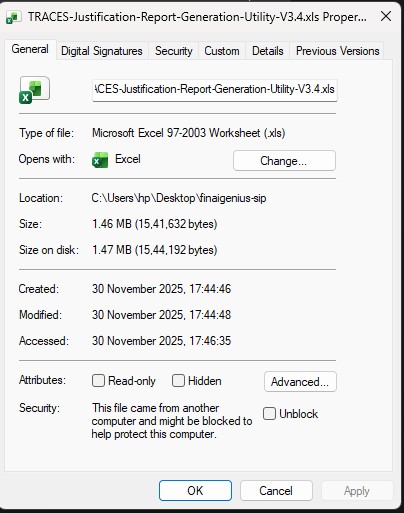
When you download files from the internet, Windows marks them as “potentially unsafe” because they were obtained from an external source. This is a standard security feature to prevent malicious files from running on your system.

If the Justification Report Utility or the report file you downloaded is blocked (due to security settings), Right-click on the file and select Properties. In the Properties window, click on the checkbox or an option that says “Unblock” (usually at the bottom of the window) and click Apply.
If the file contains macros, Excel will typically prompt you with a Security Warning at the top of the document (near the ribbon), with a button that says “Enable Content”. Click on “Enable Content” to allow the macros to run.
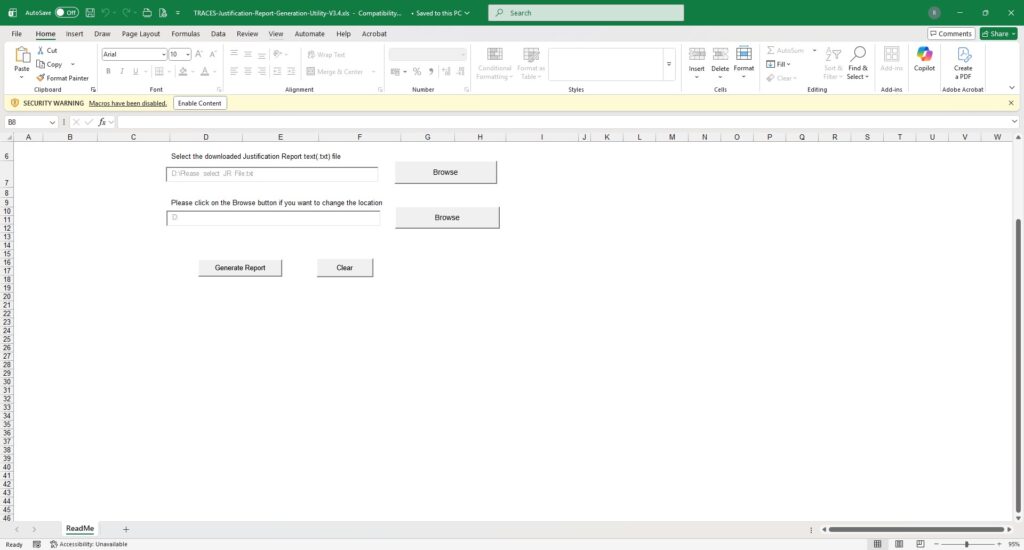
After enabling Macros, the following steps may be followed to generate the Justification Report.
- Unzip the Source File downloaded from TRACES
- The password for unzipping the file is JR_[TAN]_Form No._Quarter_FY (For Eg: JR_CHES12345A_26Q_Q3_2025-26)
- Click on the first “Browse” button and select the txt file unzipped from the Source file downloaded from TRACES.
- Click on the first “Browse” button and select the Destination folder where you want the resultant file to be generated.
- By default the destination is selected as the same file as the source file.
- Then click on the “Generate Report” Button to generate the Justification report.
Precautions to be ensured before generating the Report
- Use the latest TRACES Justification Report Generation Utility to avoid compatibility issues. Always check for updates (either through the TRACES website or TaxRoutine Website) before generating the report.
- Confirm MS Excel 2013 or later with macro support; close other Excel instances and disable antivirus temporarily if scanning blocks the process.
- Unblock Security and Enable Macros as mentioned above.
- Ensure the TDS statement is “Processed with Default” on TRACES, as reports can be generated only for statements with identified errors.
- Ensure that the latest Regular/Correction Statement is processed and not “under Processing”.
- The reports downloaded are valid only until the next correction statement is filed for the relevant quarter. Therefore, it is important to verify the date of latest statement filed to ensure accuracy of the statement.
- The zip file generated from the TRACES website must be first unzipped using the Password.
- Form No. 146 (Erstwhile Form 15CB): What You Need to Know | TaxRoutine
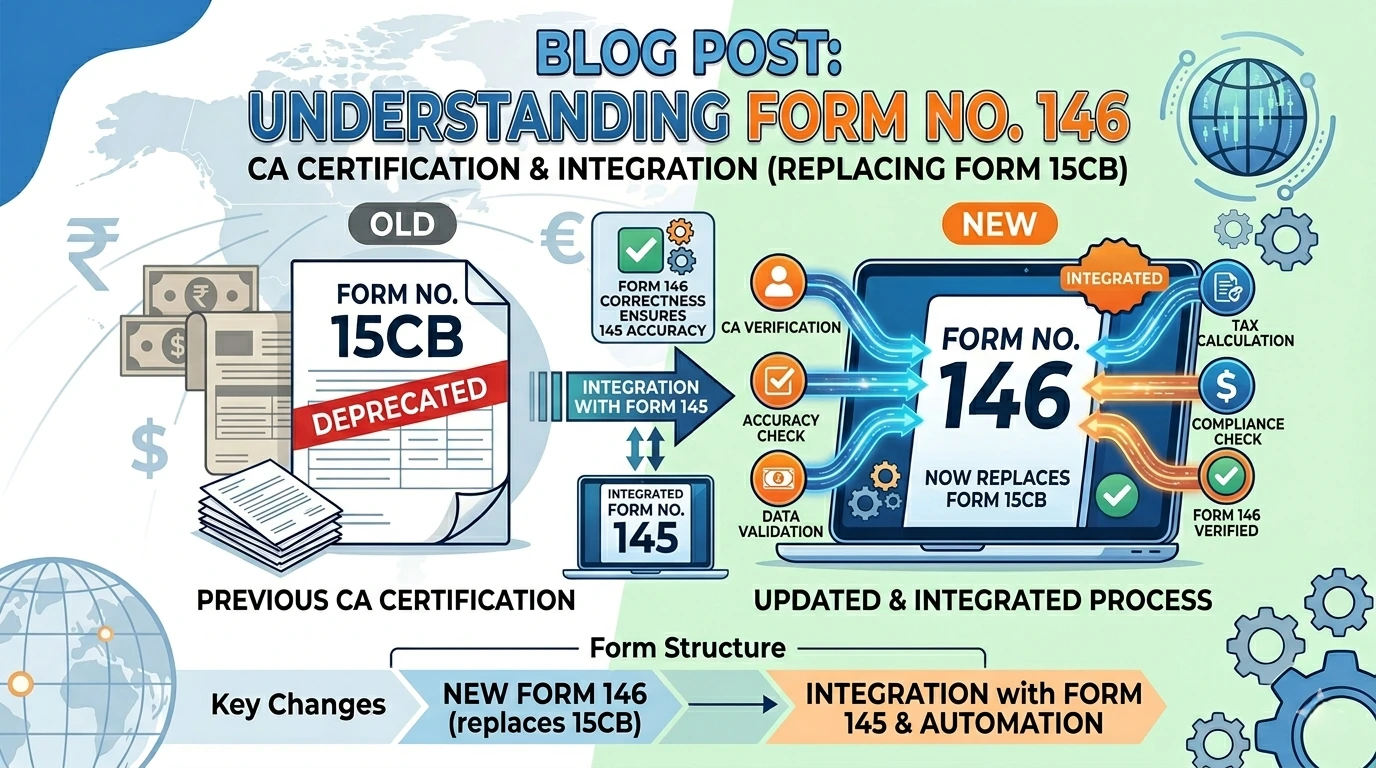 Spread the love Post Views: 7 Form No. 146 (Erstwhile Form 15CB): What You Need to Know | TaxRoutine TaxRoutine › Direct Tax › Form No. 146 Free Article Income-tax Act, 2025 I.T. Rules, 2026 Form No. 146 (Erstwhile Form 15CB): The CA’s Certificate for Foreign Remittances — What You Need to Know 📅 AY… Read more: Form No. 146 (Erstwhile Form 15CB): What You Need to Know | TaxRoutine
 - Form 145 (Erstwhile Form 15CA): Complete Expert Guide | TaxRoutine Premium
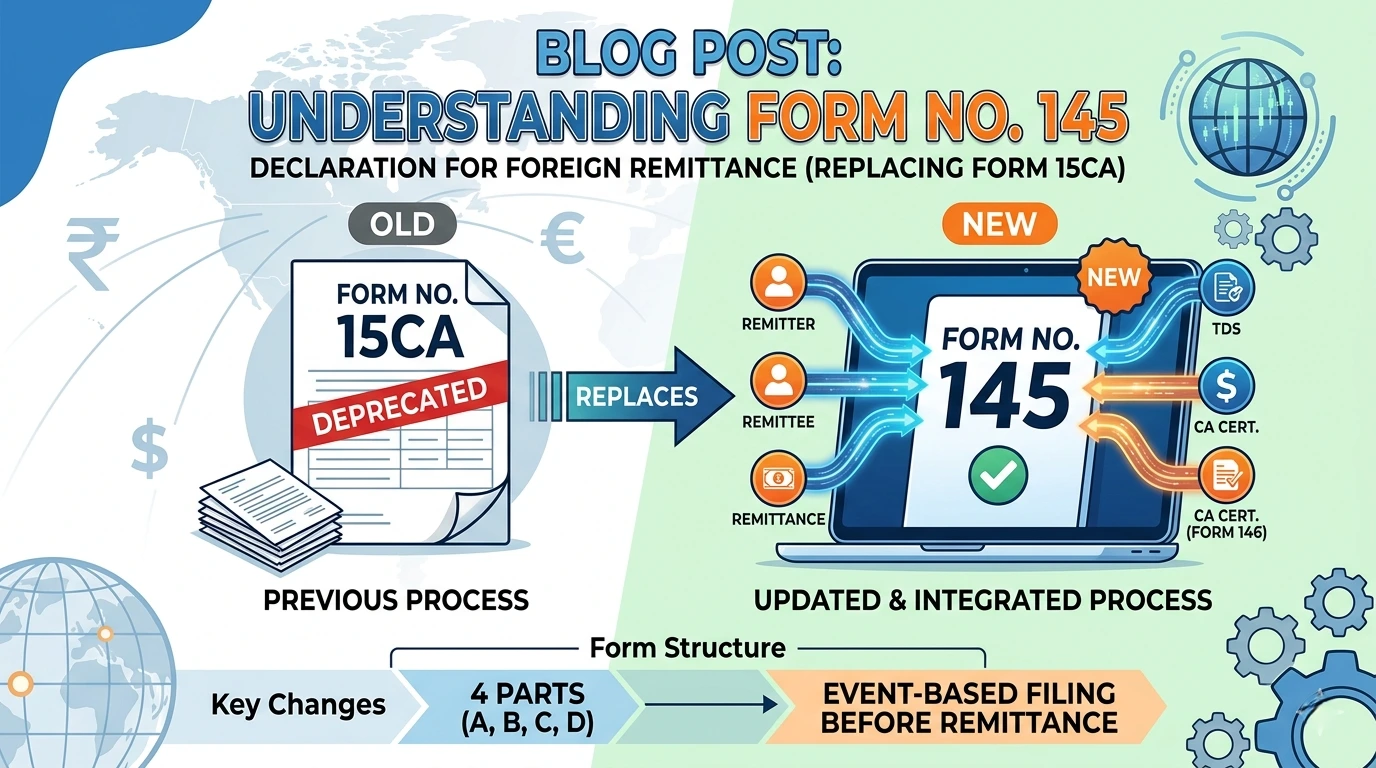 Comprehensive expert guide on Form 145 — the new Form 15CA under Income-tax Act, 2025. Covers all four parts, new structural changes, UDIN, ITDREIN, DTAA, filing modes, challenges, AO certificates, and more.
 - Gujarat High Court calls on CBDT for 11 Years of Non-Compliance on timely ITR Forms & Utilities Release
 Gujarat High Court pulls up CBDT for 11 years of non-compliance with 2015 court directions on timely release of ITR forms and e-filing utilities. Full details of CAAS vs Union of India order dated 07 April 2026.
 - TDS on Cross-Period Transactions Special Focus: March-April 2026 Transition
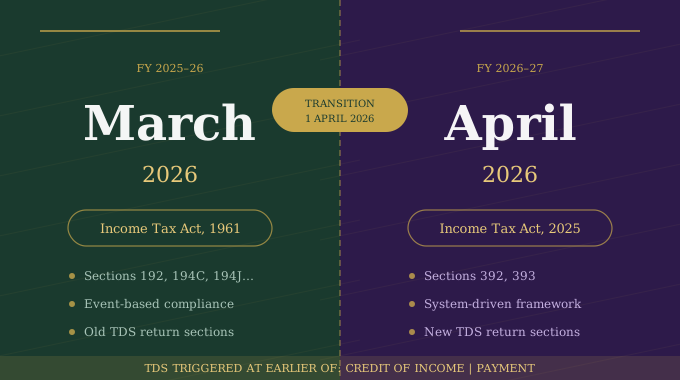 Spread the love Post Views: 16 §Legal Background of Transition The Income Tax Act, 2025 is effective from 1 April 2026, applicable from FY 2026–27 onwards. FY 2025–26 (including March 2026) continues to be governed by the Income Tax Act, 1961. This creates a unique compliance challenge — two different tax laws may apply to… Read more: TDS on Cross-Period Transactions Special Focus: March-April 2026 Transition
 - Form No. 145 (Erstwhile Form 15CA): What You Need to Know | TaxRoutineForm No. 145 replaces Form 15CA under the Income-tax Act, 2025. Learn who must file it, which part applies to you, penalties for non-filing, and how to submit it.
- Document Identification Number: A Structural Shift in Tax Administration (Budget 2026 Impact)
 DIN is one of the most important document in the tax administration and assessment enforcement. Dive right in into the analysis.
Very good post! We will be linking to this particularly great content on our site.
Keep up the good writing.
Hello, I would like to subscribe for this website to take latest updates, thus where can i do it please assist.
Spot on with this write-up, I honestly believe this site needs a lot more attention. I’ll
probably be back again to read through more, thanks for the advice!
I was recommended this web site by my cousin. I am not
sure whether this post is written by him as nobody else know such detailed about my problem.
You’re incredible! Thanks!
I have been surfing online more than 2 hours today, yet I never found any interesting article like yours.
It’s pretty worth enough for me. Personally, if
all website owners and bloggers made good content as you did,
the net will be a lot more useful than ever before.
Awesome post.
I do trust all of the concepts you have introduced in your post.
They are really convincing and will definitely work.
Still, the posts are too short for newbies. May just you please
extend them a little from next time? Thank you for the
post.
Thank you for the good writeup. It in truth was a amusement account
it. Look complex to far added agreeable from you!
However, how can we keep in touch?
If some one desires expert view concerning blogging after that i
recommend him/her to pay a visit this website, Keep up the fastidious work.