
How to File Form 141 — Schedule A
TDS on Rent Above ₹50,000 per Month
A complete walkthrough for tenants (individuals and HUFs) deducting TDS under Section 393(1) [Table Sl. No. 2(i)] on monthly rent payments exceeding ₹50,000.
Schedule A applies to any individual or HUF who is a tenant paying rent to a resident landlord where the monthly rent exceeds ₹50,000. The threshold applies per month — not annually.
Note that this schedule applies to individuals and HUFs who are not otherwise required to deduct TDS on rent under the provisions applicable to specified persons. Companies and firms that pay rent fall under different provisions and use Form No. 140 (not Form 141).
| What You Need | Details |
|---|---|
| PAN of the tenant | Your own PAN — used for login and auto-population. MANDATORY |
| PAN of landlord(s) | Every landlord’s PAN must be available. Invalid PAN means credit won’t reach the landlord. MANDATORY |
| Property address | Full address of the rented property — type (land, building, or both), complete address with PIN. |
| Tenancy period | Total period of tenancy in months during the Tax Year. |
| Rent amounts | Total rent paid/credited during the Tax Year and the amount paid in the last month. |
| Co-tenant details (if any) | PAN and proportion of any co-tenants sharing the rental payment. |
| Payment method | Net banking, UPI, or debit card — payment is made simultaneously with filing. |
Steps 1 through 5 are identical for all four schedules of Form 141. If you have already read the property purchase guide (Schedule B), you can skip to Section 4.
 Log in using your PAN as User ID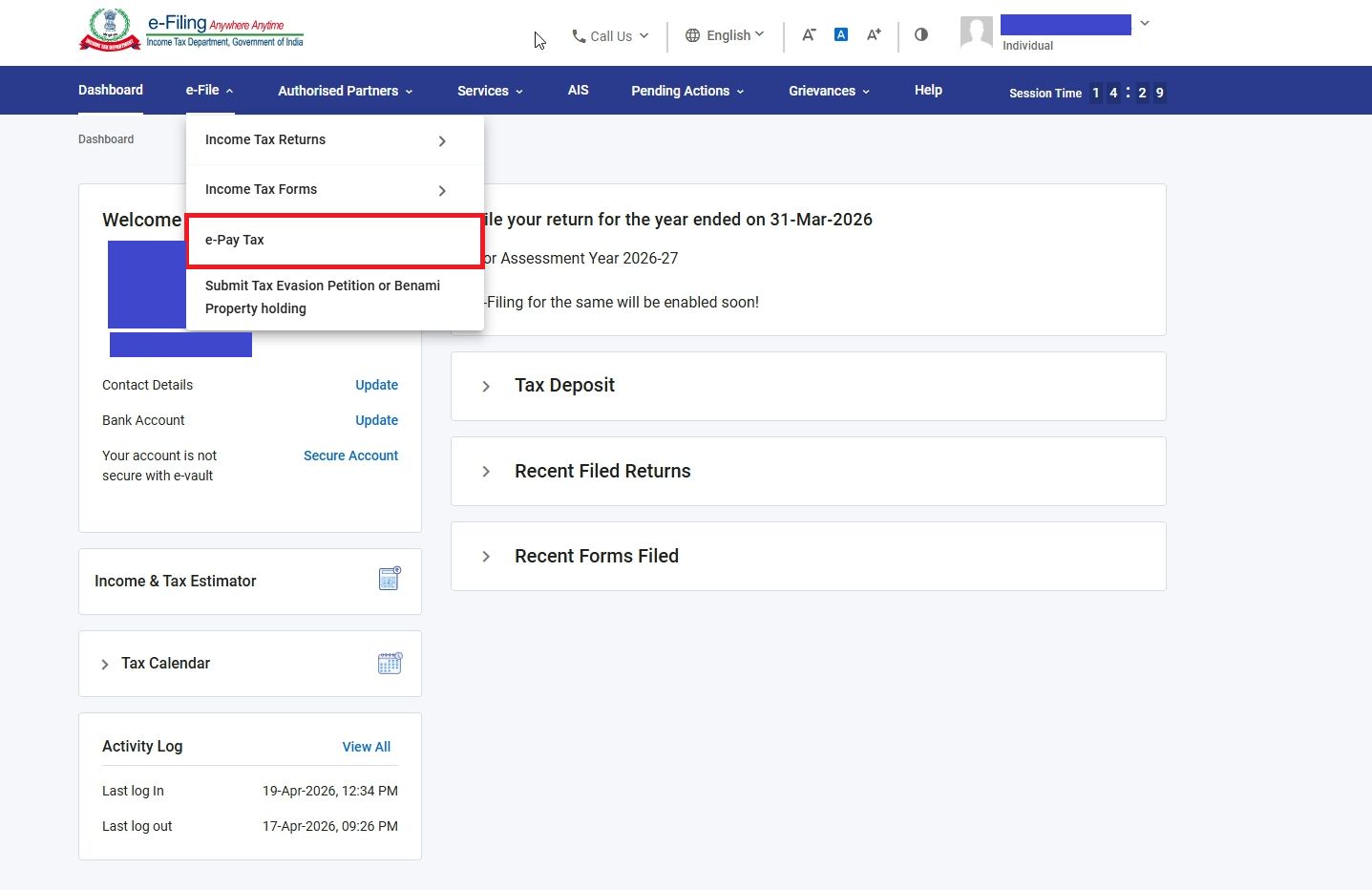
e-File → e-Pay Tax highlighted
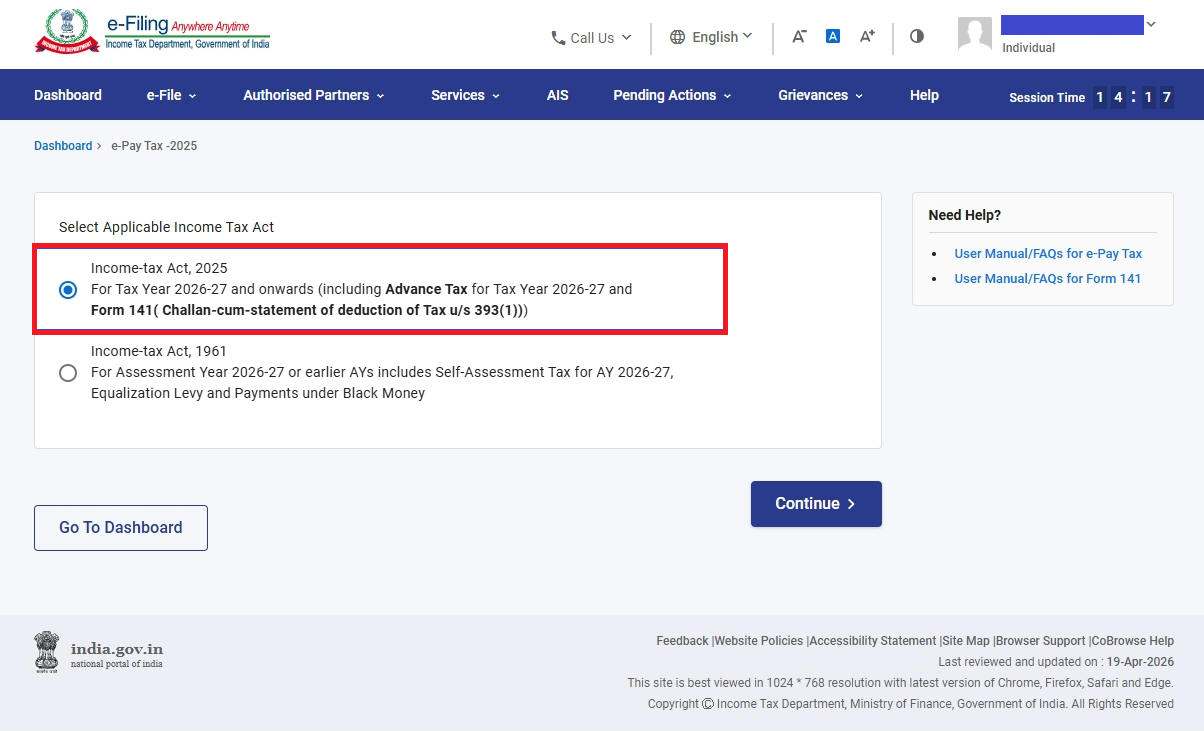
Act selection — Income-tax Act 2025 highlighted
The deductor screen shows the tenant’s details — most fields are auto-populated from the portal profile. Select the required fields and choose Schedule A — Payment of Rent as the Nature of Transaction.
| Field | Source / Action |
|---|---|
| Residential Status | Select from dropdown. SELECT |
| PAN, Name, Address, Contact, Email | Auto-populated from your registered profile. Verify they are current. AUTO |
| Tax Year | Select e.g. 2026-27. SELECT |
| Month of Deduction | Select the month in which TDS is being deducted — typically March (end of Tax Year) or the month of tenancy end. SELECT |
| Nature of Transaction | Select Schedule A — Payment of Rent and click Continue. SELECT |
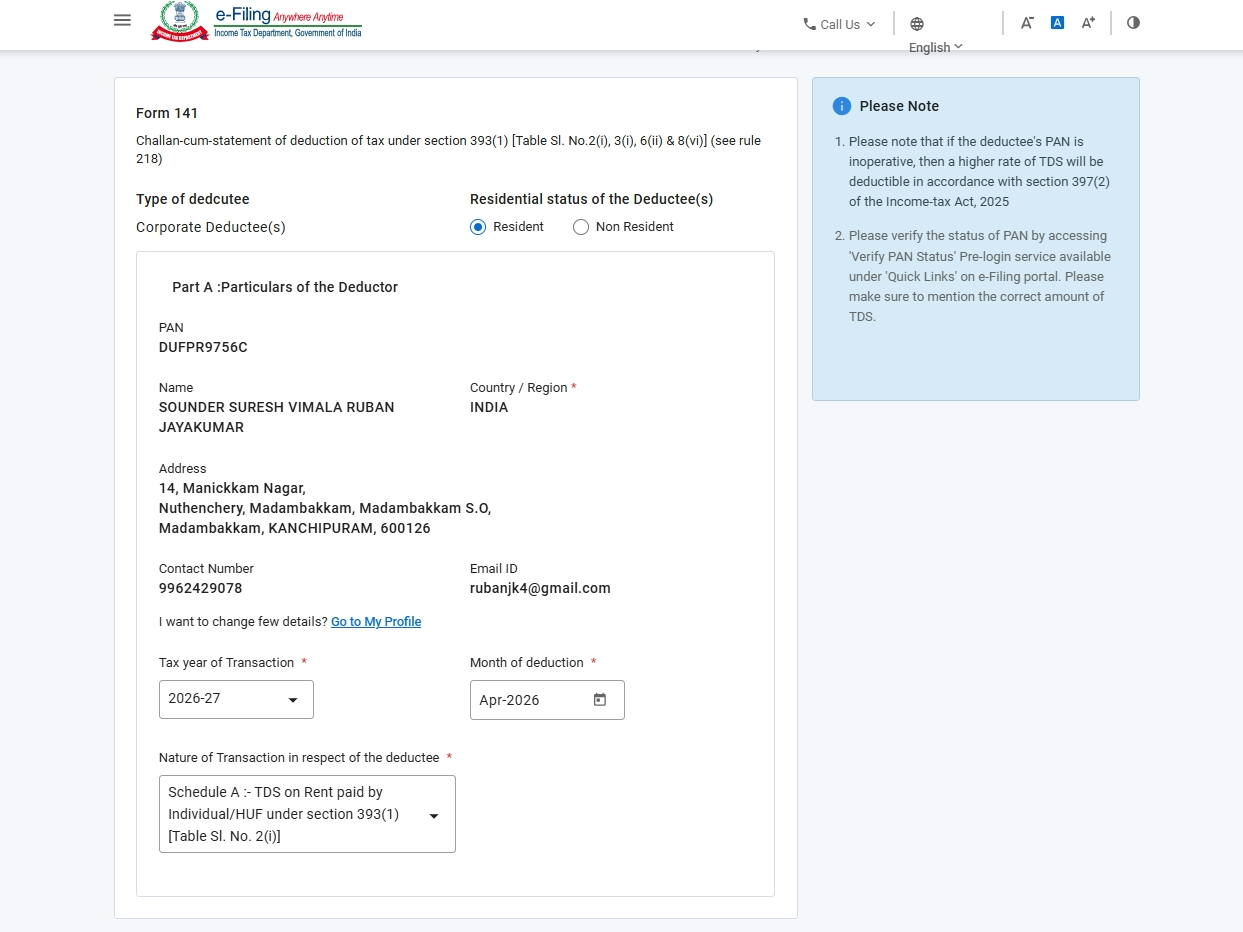
Deductor screen — Schedule A selected as Nature of Transaction
| Field | What to Enter |
|---|---|
| Type of Property | Select: Land, Building, or Land and Building both. SELECT |
| Address of Property Rented | Full address of the rented premises — country, flat/door number, road/street, PIN, area, district, state. MANDATORY |
| Field | Notes |
|---|---|
| PAN of landlord | Valid and active PAN. Name auto-populates on entry. MANDATORY |
| Contact number & Email | Landlord’s contact details. MANDATORY |
| Ownership share (%) | Proportion of total rent received by this landlord. All landlords’ shares must total 100%. MANDATORY |
| Field | What to Enter |
|---|---|
| Period of Tenancy (months) | Total number of months the property was rented during the Tax Year. MANDATORY |
| Reason for Filing | Select whether TDS is being deducted due to end of Tax Year (31st March) or end of tenancy. SELECT |
| Total Rent Credited/Paid (Tax Year) | Aggregate rent paid to all landlords combined during the entire Tax Year. MANDATORY |
| Total Rent in Last Month | Rent amount paid/credited in the last month of tenancy or Tax Year. MANDATORY |
| Field | Notes |
|---|---|
| Date of Payment / Credit | Date rent was paid or credited to this landlord. MANDATORY |
| Amount on which TDS is deductible | Proportionate rent amount attributable to this landlord on which TDS applies. |
| Certificate u/s 395(1) | If the landlord has a lower/nil deduction certificate from the AO, select Yes and enter the certificate number. Otherwise, No. |
| Rate of TDS | Standard rate is 2% under Section 393(1) [Table Sl. No. 2(i)]. Different if Section 395(1) certificate applies. |
| TDS Amount | Auto-calculated. AUTO-CALCULATED |
| Date of Deduction | Date on which TDS was deducted. MANDATORY |
| Field | Notes |
|---|---|
| TDS Amount | Auto-calculated from above. AUTO |
| Interest | Payable under Section 398(3)(a) for late deduction. 1% per month from due date of deduction to actual deduction, then 1.5% per month from deduction to deposit. |
| Late Filing Fee | Under Section 427 for late filing beyond the 30-day due date. |
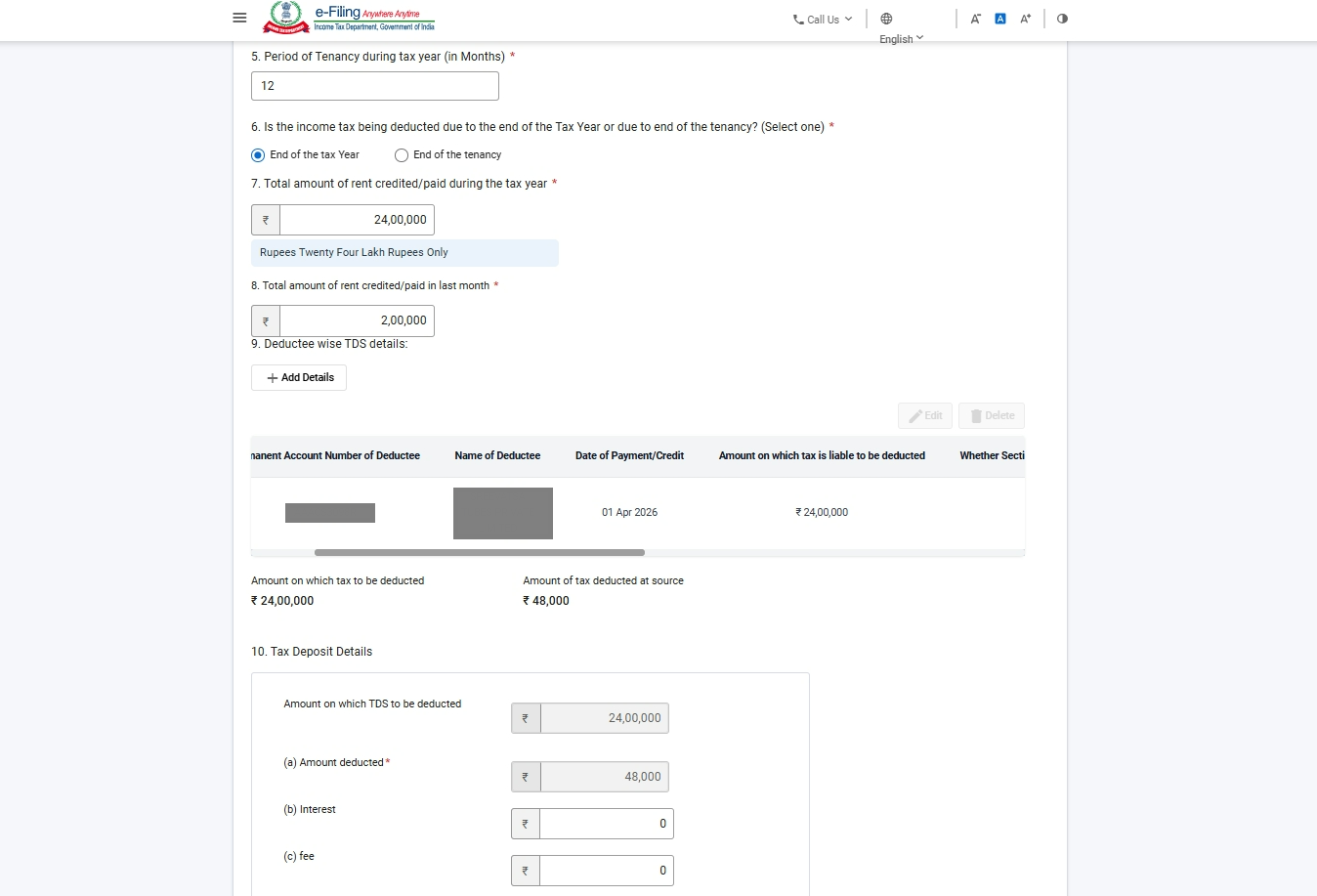
Schedule A filled — property, tenants, landlords, TDS details
Click Continue after completing Schedule A details. You will be redirected to the payment screen. TDS payment and form submission happen simultaneously.
On successful payment, a Challan Identification Number (CIN) and Acknowledgement Receipt Number (ARN) are generated. Download the challan-cum-statement immediately and retain it as your proof of filing.
Payment confirmed — CIN and ARN generated
📥 Downloading Form No. 132 — The TDS Certificate for the Landlord
After filing Form 141 and making payment, you must download Form No. 132 (the TDS certificate replacing erstwhile Form 16C) from TRACES and issue it to your landlord within 15 days from the due date of filing Form 141.
If you haven’t registered on the revamped TRACES portal yet, you’ll need to set up an account first. See our detailed walkthrough: TRACES Portal Revamped — How to Register and Use It.